Dreadfully sorry everyone, the Hive Lite theme we were using got corrupted, so we have switched themes.
There were also some plugin update issues, which we are working through.
Thanks for your cooperation and patience.
Dreadfully sorry everyone, the Hive Lite theme we were using got corrupted, so we have switched themes.
There were also some plugin update issues, which we are working through.
Thanks for your cooperation and patience.
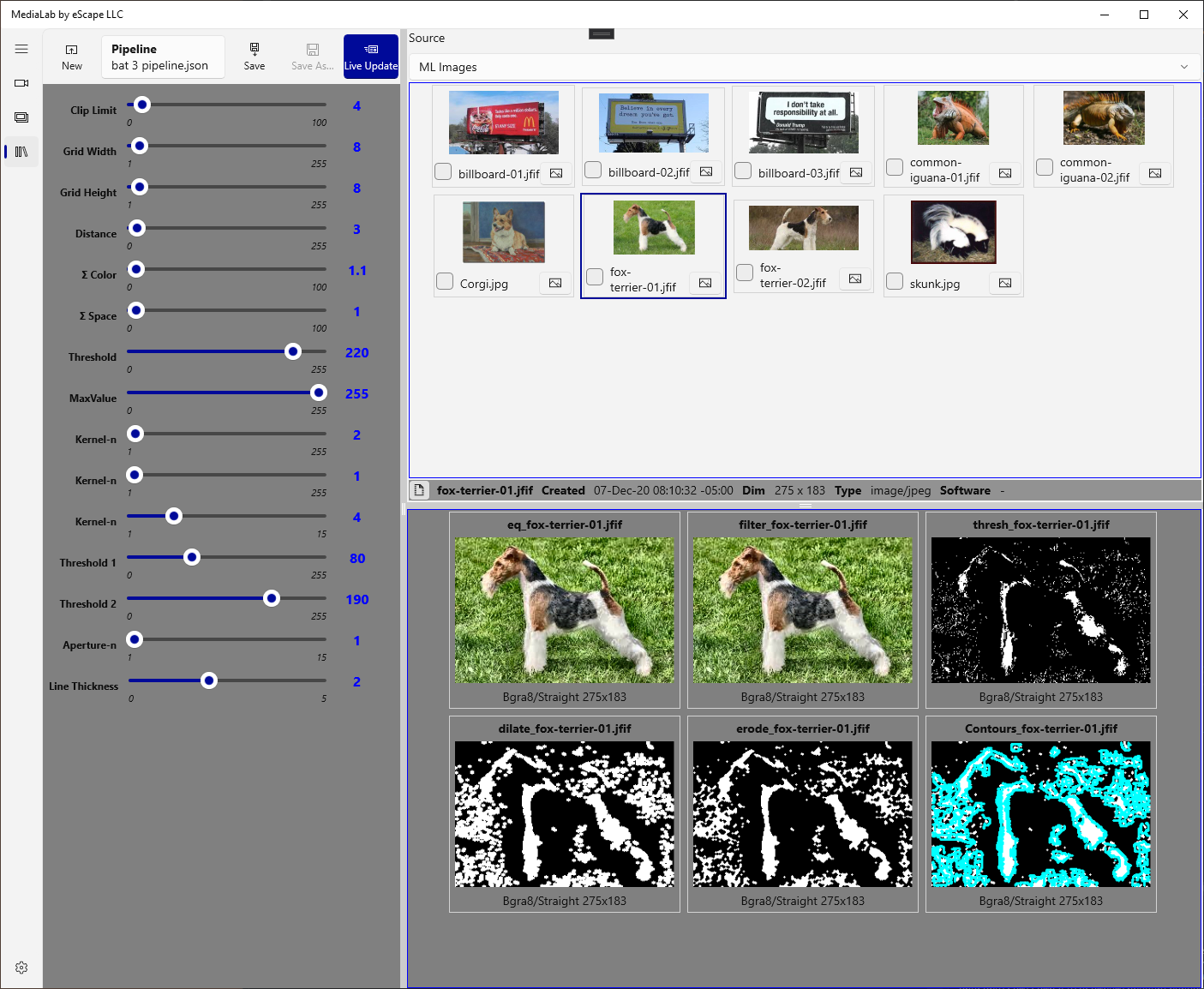
We would like to take some time to discuss this exciting new feature upcoming in MediaLab. This should appear in package version 16.
Live Update is a modal view you “toggle on” within the Pipelines Page. Any previously-selected image immediately runs the pipeline and the results appear in a lower Grid View, so you can see them all-at-once.
The property grid switches to easy-to-manipulate sliders for all the numeric properties. Every change to a slider immediately runs the altered pipeline and updates the Grid View, so you get quick feedback on all the operations in an instant.
Likewise, selecting an image in the Source Grid immediately runs the pipeline on that image. Toggle out of Live Update to go back to the property grid, with all your changes applied.
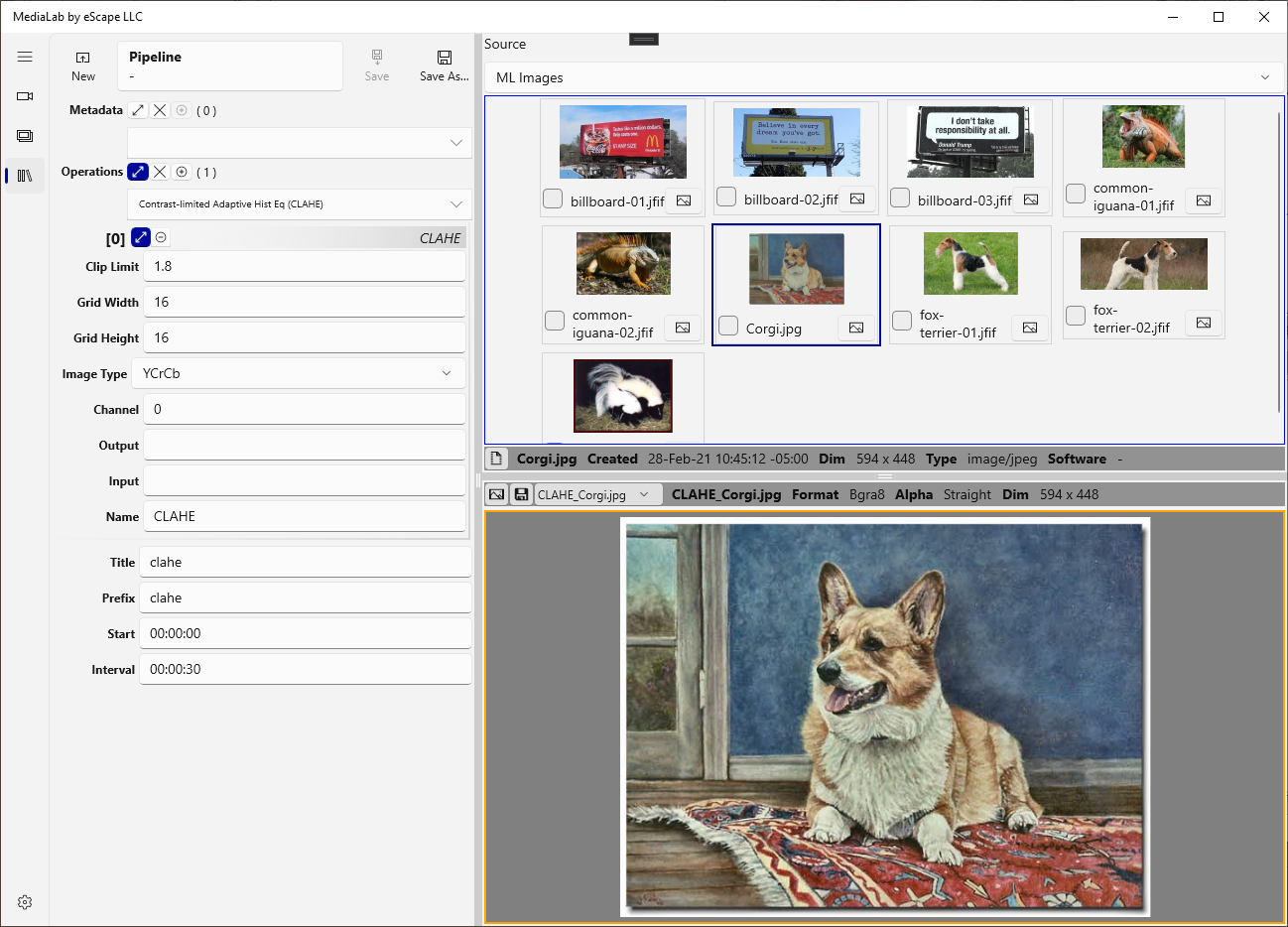
It’s that time again and this update is big and fat!
In the 1.0.15.x update we have these new OpenCV operations for your pipelining pleasure:
There are also a number of improvements throughout all the pages of the UI. Many of these are related to operating without an Output Folder specified, and how Data files get created when Commit Outputs is off.
There were also some issues in the Pipeline Results page and the Pipeline Outputs panel (used in several places).
This update and the previous update were configured as optional updates, and to “roll out” to a portion of users (40%), instead of forcing it on everyone. If you are not getting updated, please check directly for updates and you should get it. Also make sure you are getting the 1.0.15.x update.
See the wiki for more details.
We found out nuget.org supports symbol packages, we are working our way through our existing catalog and re-publishing with explicit symbol packages.
Previously we were putting the PDB files into the main package.
To take advantage, you must use nuget source v3 (https://api.nuget.org/v3/index.json), and add the nuget symbol server https://symbols.nuget.org/download/symbols to your list of symbol servers in Visual Studio. See Specify symbol (.pdb) and source files in the Visual Studio debugger for details on that process.
We are aware of crash reports related to the 1.0.11.0 package. It appears to be dependent on your OS version.
We are working on an update to fix this. Please enable your Windows 10 to allow crash reporting to send along details. This enables us to repair effectively.
MediaLab writes exception reports (named “Unhandled-xxx”) to the Root Folder. Please send (non-empty) files to us via email support@escape-technology-llc.com.
Yet another update of MediaLab is nearing completion! There were a number of fixes, but instead let’s quickly go over the new features.
You can choose from the encoders recognized by the UWP sandbox, which includes the usual suspects.
For the encoders that support it, you have access to some of the encoder settings, e.g. Image Quality.
Your selected encoder is used throughout the application.
In the same vain of encoder support, image metadata is supported.
The Settings Page has some “global” metadata that goes into every image.
Pipelines now have an additional Metadata list property, where you can override or add metadata entries that are pipeline-specific.
To facilitate running multiple application operations in parallel, there is a new mechanism for them. This addresses situations where you need to run the same pipeline on many different sources, e.g. 100 videos.
Invoking a command like “Run Pipeline on Image Source” on the Image Page previously “locked” the page during processing.
This is no longer the case, and the UI that manages the operation now appears in an overlay window, the Jobs Overlay. This panel has transparency, and goes opaque on hover for better visibility.
Now running an operation goes straight to the Jobs Overlay, and the main UI remains available for starting more jobs!
We have just completed a big fat update for MediaLab, in Windows Store now!
The big new feature is version 2 pipelines having multiple operations per frame.
The next big new feature is the Pipelines Page. This is a combination of features from the Analyze and Image Pages.
With multiple operations per frame comes multiple intermediate images, and you have complete access to the output of each operation.
Visual refresh thanks to a big fat WinUI update; enjoy the rounded corners…
Be sure to visit the wiki on DevOps for more details; it got a big fat update with lots more text and screen images.
We finally jumped through all the hoops to publish on Maven Central. What is Maven Central? Only the primary repository for maven-based Java projects!
There are tutorials on the Sonatype site itself, but the basic steps are here.
So you think you want to take to the next level with Java? We published some JARs on Sourceforge (remember that one?) but this is intense.
This one was interesting, because you must “claim” your namespace via a Jira ticket in the Sonatype Jira system. Make sure to sign up first.
You literally make a ticket to the effect of “hey there, I want to claim ‘com.escape-technology-llc’ as a namespace”. However, you must also submit “proof” that you own the domain you are claiming. After all, any old person could come along and try to claim our super-cool domain name…
There are several ways to do it; we ended up adding a TXT record to our DNS, with the Jira ticket ID as the value. We had a slight complication due to “split” hosting; our web and DNS are different providers. Since you are in a Jira ticket, it was simple enough to provide the extra info to do the lookup.
Now that you are “in the club” comes the task of preparing your sweet piles of Java for the submission process.
Since it’s “maven all the way down” it will come as no surprise that the way to get JARs into Central is via maven plugins. Also required are a handful of “documentation” elements you may not have all of them (yet). Adding Sonatype servers to the distributionManagement element is also required.
Central has “required” plugins along with the publishing-related plugin from Sonatype:
Some have specific configurations; again the Sonatype “manual” is quite good just copy and paste. Note that you must provide both javadoc and source JARs along with your built JAR.
The final touch is adding your Sonatype credentials into settings.xml and you are almost there!
Did I see a “9er” in there? Yes there is a GPG plugin, because you must sign everything for submission. We installed Kleopatra and set up a key pair that way.
Complete the settings.xml by adding the key passphrase and GPG executable location and now you are there!
At this point, you can simply mvn clean deploy and watch the magic! Depending on your environment, maven may prompt interactively for the passphrase.
This should be the end of the tale, but for the epilog. Log in to the Nexus Repository Manager and ensure your artifact(s) are replicating, because you publish to a staging repository from maven. When we did so, we found our artifacts already in the public repository!