Tag: opencv

  • MediaLab Used in Exciting Research Project on Bats

    We are extremely pleased to announce that MediaLab was an integral part of the data processing behind an exciting research project on Little Brown Bats (Myotis lucifugus) at Tippy Dam in Michigan!
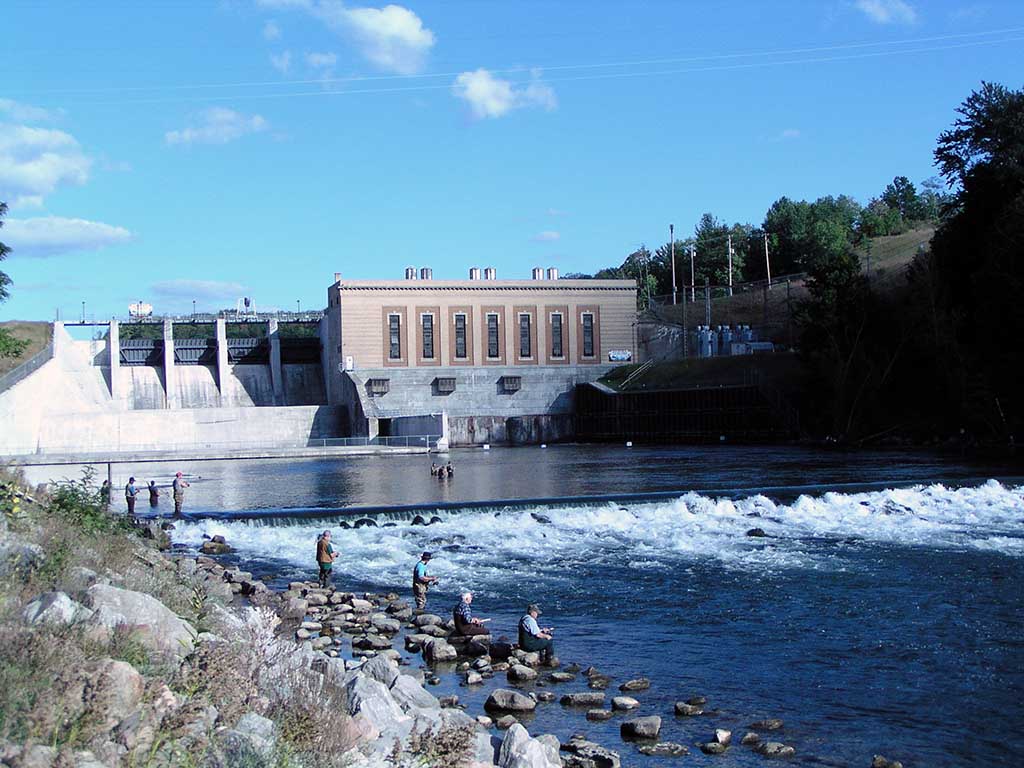
    Tippy Dam in the Northern Lower Peninsula Michigan

    See the article here from PLOS!

    See the blog post from one of the researchers!

    Why is this research important?

    A fungus known as White Nose Syndrome (Pseudogymnoascus destructans) has been decimating bat populations all over the world, but this particular bat population is surviving in spite of it being present in their hibernaculum.

    Little Brown Bat (Myotis lucifugus) with White Nose Syndrome (Pseudogymnoascus destructans)

    A large part of the research consisted of analyzing 1000s of hours of infrared video of the bats in two different “rooms” of the dam’s interior. The researchers originally tried to use an existing “recipe” to process the videos, but encountered many technological obstacles carrying it out, and ultimately met with failure.

    Out of this failure, MediaLab was born! Using Microsoft Visual Studio, the OpenCV computer vision library, and the Universal Windows Platform (UWP), we set about creating the image processing application that brought this research project to a successful dataset for analysis. We are also pleased that it is in Windows Store for the last 18 months, with hundreds of installs!

    Why didn’t we mention this sooner?

    Due to the competitive nature of research in this field, we were asked to keep a “low profile” with regard to bragging. Nevertheless, many of our screen images posted in the Wiki and elsewhere provided clues to how MediaLab was being used to produce hundreds of megabytes of data to bring this research project to a successful completion.

    What did we do with MediaLab on this project?

    There were several key processing elements:

    • Load seven-day-long video files and extract “frames” every 10 minutes.
    • Save each frame as an individual image file for subsequent processing.
    • Then for each “set” of frames:
      • Run a MediaLab “pipeline” consisting of multiple CV operations.
        • Contrast-limited Adaptive Histogram Equalization
        • Gaussian blur
        • Threshold
        • Contour extraction (canny)
        • Contour data output
      • Different videos required parameter adjustments on the pipelines.
      • Output the data into CSV file(s) for subsequent processing.
    • Then for each “set” of CSV data files:
      • Process in the R statistics platform to produce statistics and graphs.
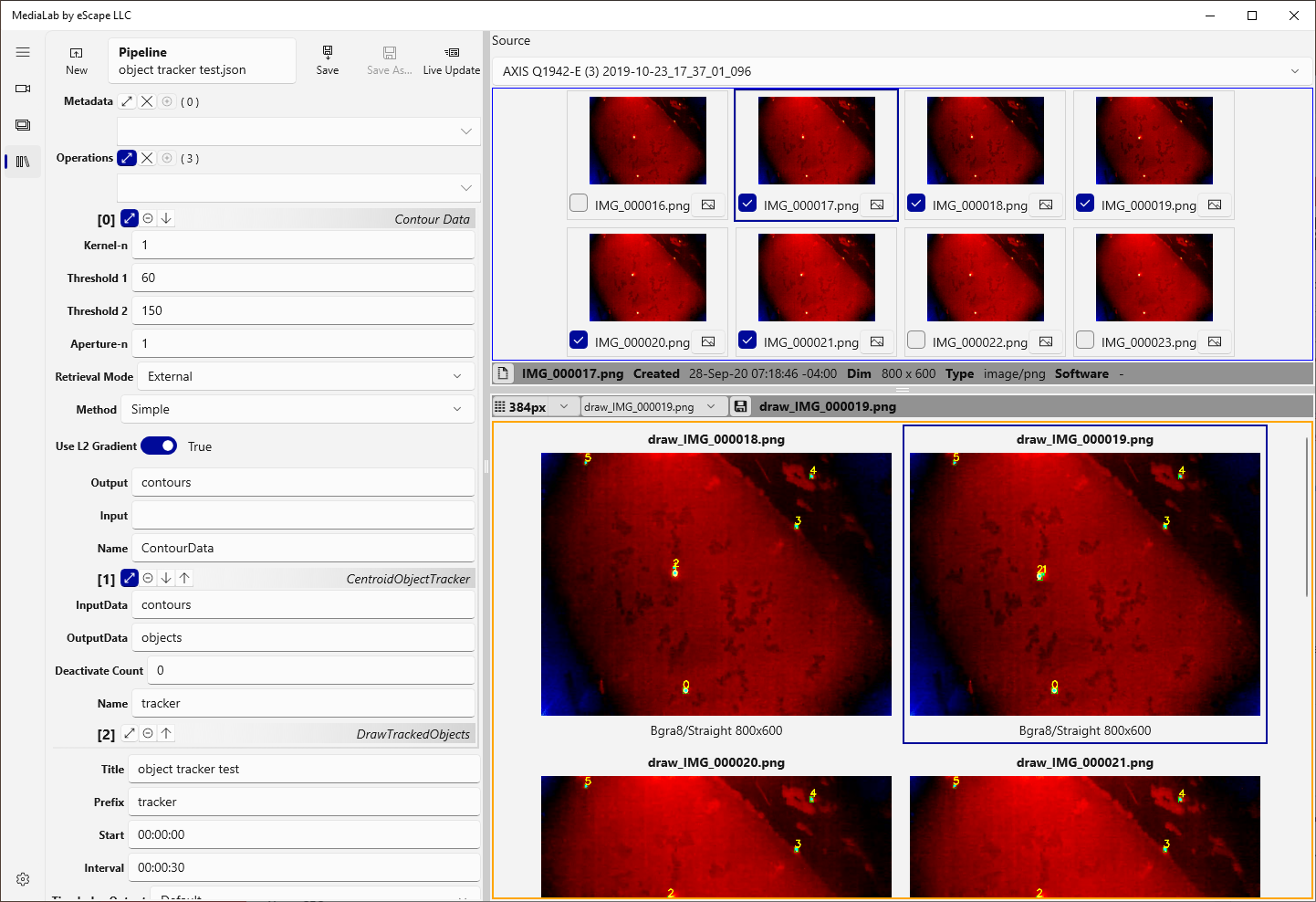
  • How to use Object Tracking in MediaLab

    How to use Object Tracking in MediaLab

    Object tracking in the package 17 update is provided by the Centroid Object Tracker operation, based on the popular algorithm. We won’t go into too much detail on the algorithm or its drawbacks; see the literature for more information.

    Our implementation is simple and based on the pairwise distances of existing and incoming objects. Each object tracks this information:

    • Unique ID
    • Bounding box
    • Centroid
    • History (track)

    Object tracking requires contour data as input; this comes from the Contour Data operation, and highlights another new feature; named data items.

    An interesting property is the Deactivate Count that “holds onto” a tracked object for the given number of frames, before permanently removing it from the list. This is useful if objects temporarily leave the frame or their contour is “missed” for several frames.

    The COT also uses named data items to store its output; the Draw Tracked Contours operation consumes this as a named data input. The COT of course outputs CSV as well!

    The DTC takes this data input, and drawing information, and renders it on the frame. You can specify colors and line styles for all the components tracked for each object.

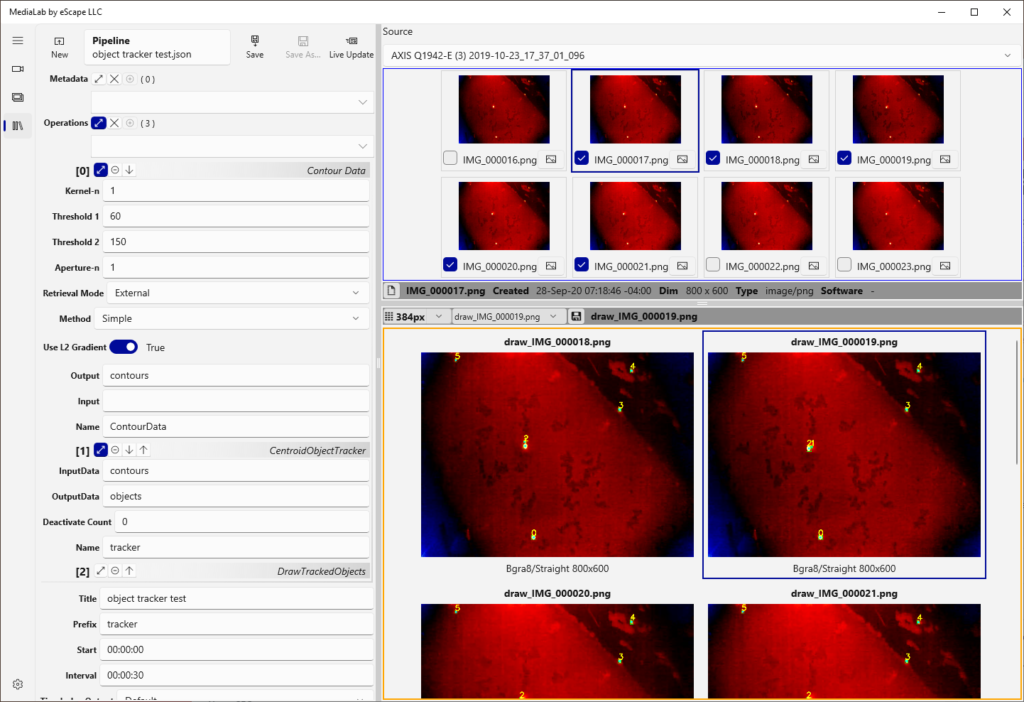
    Object Tracking Demo
    Object Tracking Demo

    The demo pipeline above demonstrates the minimum operations required to extract contours, feed them to the COT, then render everything.


  • How to use Chromakey in MediaLab: it’s Awesome!

    How to use Chromakey in MediaLab: it’s Awesome!

    Part of the big fat boatload of new operations in 1.0.17 are chromakey (matting) operations. This is literally the “green screen” effect blending the foreground and background together effectively.

    There are many algorithms in this domain and make for fun reading. MediaLab implements color range and alpha blend matting.

    Types of Matting

    In color range, the cv::inRange creates a mask on the key color (range), e.g. “green”. The mask and its compliment guide the foreground and background copy/paste of pixels. There are numerous examples of this process laying around in C++ and Python. You can do these individual steps now in MediaLab. We also packaged it into one operation for convenience and performance.

    Alpha blending translates the “key” color into a blend (composite) between foreground and background. A process courtesy of Petro Vlahos calculates the color of the combined pixels. The idea is to make the foreground “transparent” where the key color is, so the background color is opaque. Since this involves lots of Linear Algebra, it’s packaged for your convenience.

    These new operations alone are useful, but some other new operations help too.

    New Operations

    First issue: how do we get a background? The Frame Source is our only image stream, the chromakeyed foreground. The new LoadImage operation handles it. You can now load multiple out-of-band images for other purposes, like compositing.

    Second issue: this stuff only works if the two images are the same dimensions (and pixel format). It would be most convenient to get a “piece” of the background matching the size of the foreground in the right location. The new RoiExtract and RoiCombine operations handle it.

    Example Pipeline

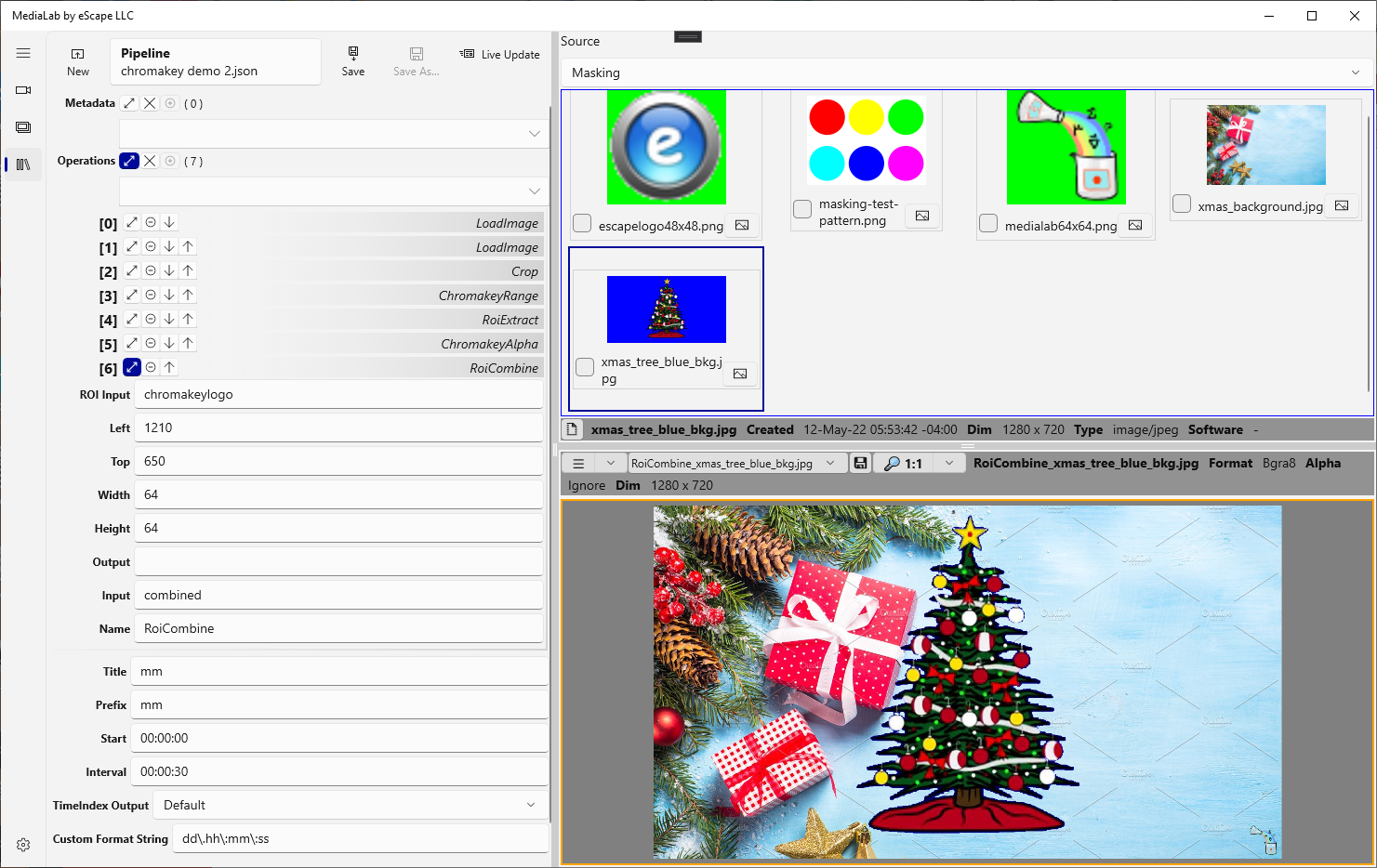
    You can extract (copy) a background rectangle, chromakey it, and combine (paste) it back. A good example is putting a “logo” in the corner of an image. Let’s run through that pipeline quickly.

    1. Load Image – static background (1360×906) -> background
    2. Load Image – logo with green key (64×64) -> logo
    3. Crop – background size must match incoming frames (1280×720) background -> background_crop
    4. Chromakey Range – take incoming frame (with blue key) and combine (input, background_crop) -> combined
    5. Roi Extract – copy patch (64×64) matching logo combined -> roi
    6. Chromakey Alpha – take the patch and combine (roi, logo) -> chromakeylogo
    7. Roi Combine – take modified patch and paste back (chromakeylogo, combined) -> output
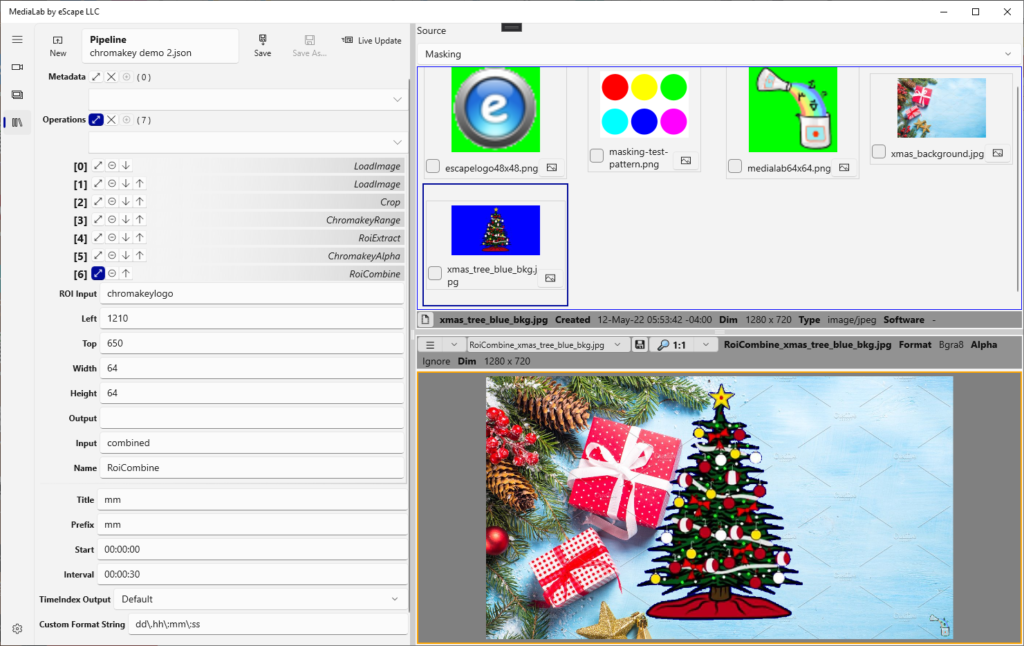
    MediaLab running the example pipeline.
     

  • Lots of New Operations are Coming…

    The upcoming MediaLab release is packed full of new operations from Open CV and more.

    The new Open CV operations added are extensive:

    • Bitwise And/Or/Xor/Not with optional mask (cv::bitwiseXXX)
    • Addition and Subtraction with optional mask (cv::add and cv::subtract)
    • Linear combination (cv::addWeighted)
    • Mask generation (cv::inRange)
    • Image pyramid upsample and downsample (cv::pyrUp and cv::pyrDown)
    • Region-of-interest (copy/paste)
    • Chromakey (color range/alpha)
    • Sobel and Laplacian operators
    • Box filter (cv::boxFilter)
    • Sum-of-squares Box filter (cv::sqrBoxFilter)

    The additional (non-CV) operations are:

    • Load (static) image
    • Centroid-based Object Tracker
    • Draw Object Tracking

    Many of these operations are suitable for range-based masking and combining images via masks, e.g. chromakey operations. This extensively widens the number of possible uses for MediaLab!

    There are also internal enhancements making using grayscale (mask) images easier, with no extra conversions to/from BGRA.


  • Invoke IDispose from C++

    A major part of MediaLab is the “interop” layer between the managed C# code and the unmanaged C++ OpenCV layer.

    This interop has some special constraints, but this post is about a more general-purpose issue between C# and C++: the try/finally construct. In C++ there is no such thing. Instead, they leverage the “automatic” scope finalization built into the language, i.e. “smart pointers” in their many forms.

    The bad news is, std::unique_ptr and the gang do not accept ref class types as the type parameter, e.g. if I want to make a std::unique_ptr<Windows::Foundation::SomeType^> that does not compile.

    Why is this important? In .NET there is the IDisposable interface, responsible for resource lifecycle. Programmers may use try/finally or the using construct to ensure it is invoked, regardless of exceptions. Neither of these constructs is viable in the C++/CX interop world, so instead, we need to “go with the flow” and leverage the automatic scope finalization built-in.

    Why is this even something to worry about? Because eventually you obtain something that implements IDisposable and you “own” its lifecycle and must now ensure it is disposed under all circumstances!

    This code is adopted from the final_act implementation, widely used as a “finalizer”. We just wanted to use that, but it also did not compile, so we just stripped it down. In C++/CX, the operator delete actually invokes the IDisposable machinery. In fact, you cannot even compile a call to Dispose()!

    template <class F>
    class disposer {
    public:
    	explicit disposer(F inst) noexcept :f_(inst), invoke_(true) {};
    	~disposer() noexcept {
    		if(invoke_) delete f_;
    		invoke_ = false;
    	}
    	F operator->() const { return f_; }
    private:
    	F f_;
    	bool invoke_;
    };
    

    As you can see, everything is hard-wired for simply invoking operator delete on the way out. A convenience override for operator-> makes it all work like butter!

    // this invokes IDispose (via delete) at end-of-scope
    disposer<BitmapBuffer^> bb(sb->LockBuffer(bbam));
    IMemoryBufferReference^ imbr = bb->CreateReference();
    ...
  • How to Load MediaLab Data Files into R

    Did you know MediaLab has many operations that produce CSV data files? This post reviews how to load a folder of CSV files into R data frames.

    Disclaimer

    Please note: we are not experts in using R, and we pulled this example together from Internet sources. However, it is running a production data processing pipeline in R. We processed 100s of hours of video to produce the data, using the Contour Data operation.

    File System

    Let’s start with how to handle the file system, and get a list of file paths to process. The source videos had the starting time-and-date in the file name, so we used some regex magic to leverage that. We needed to adjust the TimeIndex value contained in each CSV file to an absolute timestamp.

    # Root Folder is set here (NO Backslashes please)
    rootFolder <- "C:/Users/xxxxx/Pictures/Saved Pictures/MediaLab/Data"
    # Adjust the PATTERN (regex) to match your file name pattern
    fileList <- list.files(path=rootFolder, pattern="Contour.*AXIS.*csv$", full.names=TRUE)
    # Extract the formatted date portion of file names (2 steps)
    fmatches <- regexpr("\\d{4}-\\d{2}-\\d{2}_\\d{2}_\\d{2}_\\d{2}", fileList)
    ftimestamps <- substr(fileList,fmatches,fmatches+attr(fmatches,"match.length")-1)
    

    That gets us 2 parallel vectors of the file names and the timestamps for each one. Now let’s just zip it up and loop over the list. Please note: there may be better ways to do this, remember the disclaimer above. Feel free to post improvements in the comments. This loop simply loads and plots the data frames using ggplot.

    fileInfo <- cbind(fileList, ftimestamps)
    for(fi in 1:nrow(fileInfo)) {
    	fname <- fileInfo[fi,1]
    	ts <- fileInfo[fi,2]
    	chart <- process_file(fname, ts)
    	# each plot in a new window
    	dev.new()
    	# must print or it doesn't display
    	print(chart)
    	# save to a file
    	output <- sprintf("%s.png", fname);
    	ggsave(output, plot=chart)
    }
    

    Process Item

    Just for more context, let’s briefly look at the process_file function, because this is the one that actually loads those CSV files. This is an example; do whatever you need for each CSV at this point.

    process_file <- function(filename, starting) {
    	dataset <- load_csv(filename, starting)
    	summary <- create_summary(dataset)
    	chart_labels <- create_labels(summary)
    	chart <- create_chart(summary, starting, chart_labels)
    	return(chart)
    }
    

    Load Data Frame

    Let’s examine the load_csv function now.

    load_csv <- function(filename, starting) {
    	data <- read.csv(filename, stringsAsFactors=FALSE)
    	#if you need to filter on area
    	#data <- subset(data, Area >= 4)
    	today <- strptime(starting, "%Y-%m-%d_%H_%M_%S")
    	# NOTE assumes only one-digit day
    	parsed <- ifelse(nchar(data$TimeIndex) > 8, substring(data$TimeIndex,first=3), data$TimeIndex)
    	data$TimeOffset <- as.difftime(parsed, units="secs")
    	# cant get this to work; need to extract dayoffset[[*]][1]
    	#dayoffset <- ifelse(nchar(data$TimeIndex) > 8, strsplit(data$TimeIndex,"\\."),  strsplit(as.character("0.99:99:99"),"\\."))
    	#data$DayOffset <- dayoffset
    	# NOTE assumes only one-digit day
    	data$DayOffset <- as.integer(ifelse(nchar(data$TimeIndex) > 8, substring(data$TimeIndex,first=1,last=1), "0"))
    	data$OffsetTimeIndex <- data$TimeOffset + today
    	data$HourOfDay <- as.integer(format(data$OffsetTimeIndex, "%H"))
    	return(data)
    }
    

    The biggest issue in this function is the hoops to jump through to add the absolute starting date to the TimeIndex of each row of data, and for the purposes of this task, extract a few more “interesting” timestamp-based values for subsequent processing.

    The main issue that must be worked around is the format of the TimeIndex column, when the source is longer than 24 hours. In our case the videos were 7 days long! That required some gymnastics. We also used the lubridate package for some of these tasks.

    We could have done some of this “date massaging” in a spreadsheet application. The size of the data files was extreme, and Excel did not handle it.

    In the meantime, there are updates to the TimeIndex output that make this easier within R!

    Follow-up

    As a result of this, we are improving the options for formatting the TimeIndex. Watch for this in the next package release!